Completely Invisible During Screen Share
Stealth mode is off
What you see
 CoderPad · Onsite round
def merge_intervals(xs): xs.sort(key=lambda x: x[0]) out = [xs[0]] for s, e in xs[1:]: ▍
What your interviewer sees
CoderPad · Onsite rounddef merge_intervals(xs): xs.sort(key=lambda x: x[0]) out = [xs[0]] for s, e in xs[1:]: ▍
Turn It On in One Keystroke
Try it below. The demo is the same control the desktop app uses, shortcut included.
Stealth mode is off. Click the eye, or press ⌘ ⇧ S.


Interview Sidekick sits in the dock like any other app.
Click the Eye Icon
It sits at the top-right of the app’s title bar and opens Visibility settings. Flip the Stealth Mode switch.
Or Press the Shortcut
Toggles instantly from both the main view and compact view.
Mac⌘+⇧+SWindowsCtrl+Shift+SHow You Know It’s Working
- An orange border appears around the app window.
- The eye turns blue and switches to the eye-off glyph, with a “Stealth” label beside it.
- The app leaves your dock or taskbar and the ⌘-Tab / Alt-Tab switcher.
Required for Zoom Users
Zoom’s default screen-share capture ignores macOS content protection, so the app can still show up in your share. Change this once:


Google Meet, Microsoft Teams, and Webex respect stealth mode without any setup.
- 1
Open Zoom Settings (the gear icon).
- 2
Choose Share Screen, then Advanced.
- 3
Under Screen capture mode, pick “Advanced capture with window filtering”.
Pro Tip
Turn stealth mode on before you join the call and share your screen, so the app is already hidden the first time your interviewer sees it. Compact view gives you a smaller floating overlay that stays on top of your other windows.
See the Difference
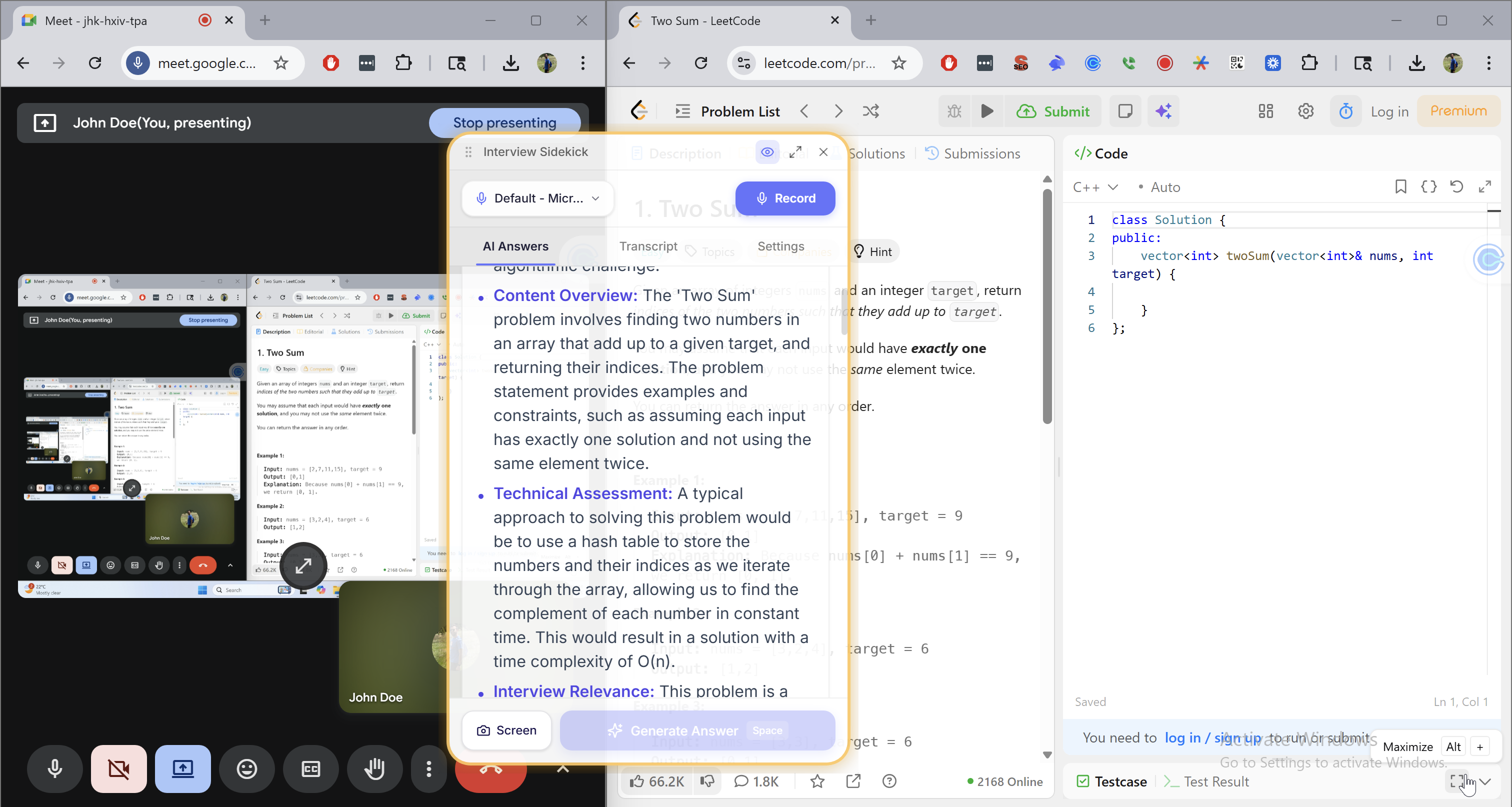
Drag the handle to compare your screen with what your interviewer sees. The same applies to OBS, Loom, and every screen recorder we have tested.
Drag the handle or use the arrow keys to compare views
Hidden Where People Actually Look
Screen share is the obvious check. These are the two that catch other tools.
Every running app shows up somewhere. Ours blends in.
Disguised in Activity Monitor
Every running app shows up somewhere, so instead of trying to hide, ours runs under the process name SystemAgent. A search for “Interview” or “Sidekick” in Activity Monitor or Task Manager returns nothing.
- Waiting…
Never Steals Your Focus
On Mac the overlay is a non-activating panel. Click it, type into it, drag it around: your interview or coding-test tab stays the active window, so browser proctoring that watches for focus changes sees nothing. Global shortcuts never move focus on Mac or Windows.
Works With Every Interview Platform
Tested and verified undetectable on all major video conferencing and coding assessment platforms.
Video Conferencing
- Zoom✓ Verified
- Microsoft Teams✓ Verified
- Google Meet✓ Verified
- Webex✓ Verified
 Lark / Feishu✓ Verified
 Amazon Chime✓ Verified
Coding Assessments
- CoderPad✓ Verified
 HackerRank✓ Verified
 LeetCode✓ Verified
 CodeSignal✓ Verified
Tested this week for undetectability